Your device.
Your first live session.
Install on Android or Windows, point the game's telemetry at that device, then check the incoming feed. You do not need both apps. Start with telemetry and local strategy; add a provider key and microphone access when you want the radio.
Start with the in-app walkthrough
Version 5.3.2 uses GPT-6 Luna and Sol plus updated speech recognition. Realtime radio is an optional switch under Settings → Engineer. It starts a live voice session on your next wake phrase or push-to-talk, closes after 25 seconds idle or 5 minutes, and ends when switched off. It may increase OpenAI API costs. The app also guides you through your API key, game UDP address and port, L3 mapping and Mark's radio. Every step is skippable. Choose Begin app tour to explore the features, or reopen either guide from Settings.
New installs use proactive calls, all-car recording and full trace detail. Upgrades preserve your choices. Privacy & usage reporting and App updates are at the bottom of Settings.
Have these ready
Nothing to buy
Your Pit Box is free. No code, no account.
A compatible device
Windows 10/11 or Android 7+, 64-bit ARM/x86, 4 KB memory pages. Android 16 KB devices are not supported by this APK.
For optional spoken radio
An OpenAI API key, internet and microphone/audio access. API billing is separate from a ChatGPT subscription.
F1 25: 2026 Season Pack on PS5 / PC
Updated and ready to start an on-track session.
Windows walkthrough — seven illustrated steps
Steps 2 and 3 are optional if you are starting without AI or voice. Android users should start with the Android instructions, not the Windows installer.
Android setup — no laptop required
The signed APK supports Android 7 or later on 64-bit ARM and x86 devices with 4 KB memory pages. Devices using 16 KB memory pages are not supported by this release. This is a direct download, not a Google Play listing; the Windows installer does not install on Android.
com.yourpitbox.app) installs separately from the test package (com.yourpitbox.app.debug) and starts with its own library. Do not uninstall the test app or expect its history and keys to move automatically. Keep a backup, then use beta history transfer when neither device is recording. Never uninstall an existing app to force a signing-key mismatch.- Download the APK from this site and check the SHA-256 on the download page. Open it; if Android asks, grant installation permission to the browser or file manager you used, then turn that permission back off after installing. Keep Play Protect enabled. Do not bypass an incompatible-device or security-policy block.
- Connect the Android device and your PS5 or gaming PC to the same private home network. Open Your Pit Box on the tablet; the laptop is not required for the native Android engine.
- Keep setup step 2 open. Enter its UDP IP Address and port in the game; set telemetry On, broadcast Off and format 2026. The usual port is 20777; use the value shown. Connection also has these details.
- Start an on-track session and confirm Receiving telemetry. A listening socket or a saved lap chart alone does not prove that fresh packets are arriving.
- For radio, save and test the provider key in Connection, allow Android microphone access, and enable voice in the app. Speech services need an OpenAI key and internet access; the dashboard can receive telemetry without voice. The optional billing and key creation instructions apply to either app.
- Check microphone input separately from the reply. If the app hears input but you hear nothing, check the selected output, media volume and Bluetooth routing. A key test does not verify the microphone or speaker.
Future updates to the release app use the same permanent signing identity. Install a verified release update over the release app; do not remove its saved data.
Before a full-length race, check your microphone, selected speaker or headset, wake phrase and background settings on the device you will use. A short radio check verifies that setup, not every Bluetooth device or power-saving mode.
Bluetooth stability on Galaxy Tab S11 Ultra (Android 16): a combined Wi-Fi/Bluetooth disconnect was reproduced with Bluetooth audio connected during a 60 Hz telemetry test. The cause is under investigation; version 5.3.2 does not yet resolve this observed condition. A successful test using the tablet speakers does not verify your Bluetooth headset.
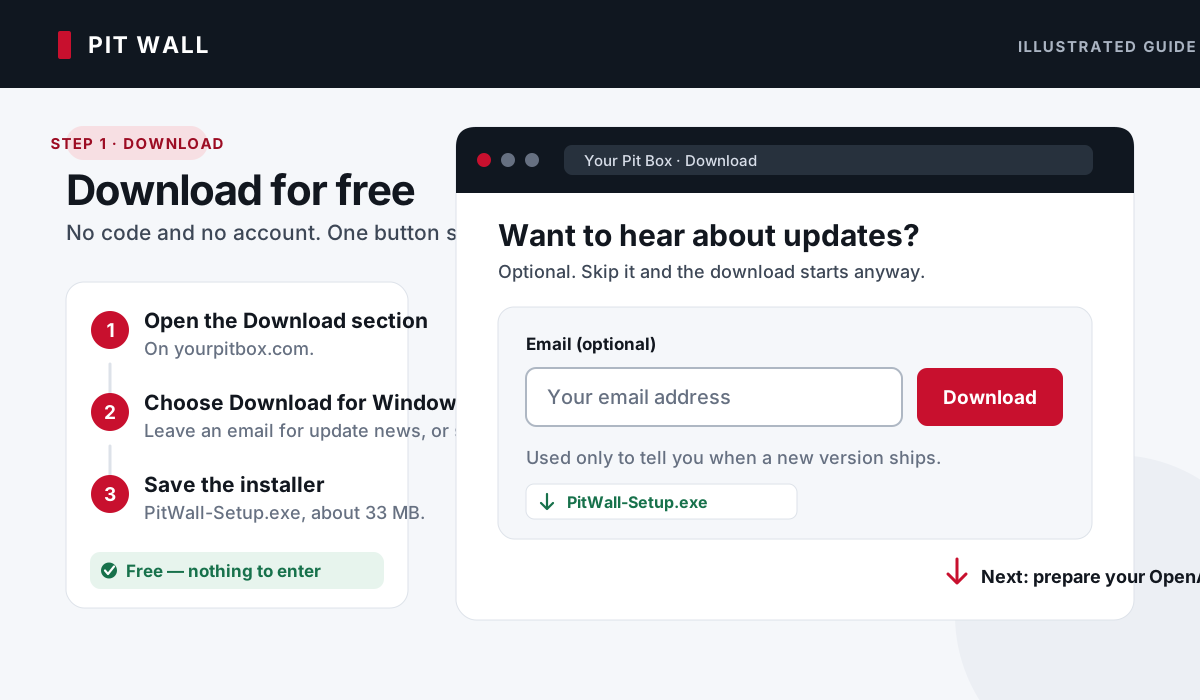
Download the Windows installer
- Open the Download section and select Download for Windows.
- A prompt offers to take your email so you hear about new versions. Leave one and choose Notify me and download, or choose Skip — just download. Either way the download starts.
- Save
PitWall-Setup.exe. The download size varies by release.
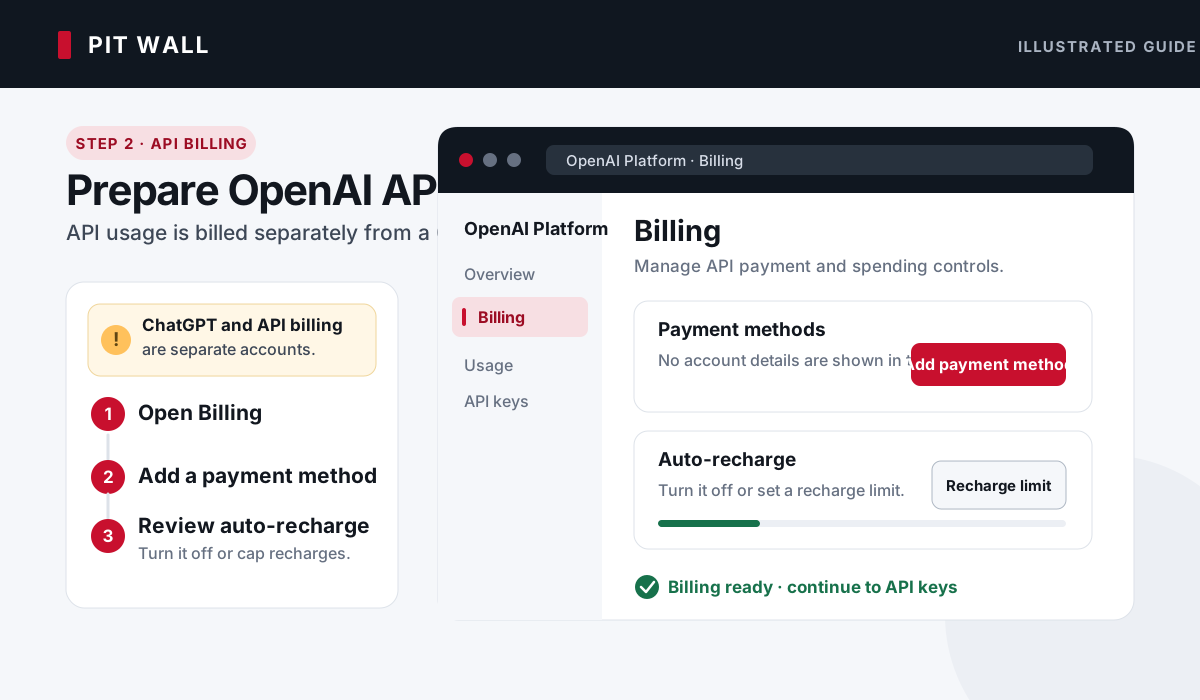
Turn on API billing
This is optional for telemetry and local strategy. If you are starting without AI or voice, go straight to Windows installation, or return to Android setup.
- Sign in at the OpenAI Platform. This may use the same login as ChatGPT, but it has separate billing.
- Open the API billing overview and add payment details or buy API credits.
- Review the auto-recharge setting before confirming. Leave it off unless you want automatic top-ups; if you turn it on, set a monthly recharge limit you are comfortable with.
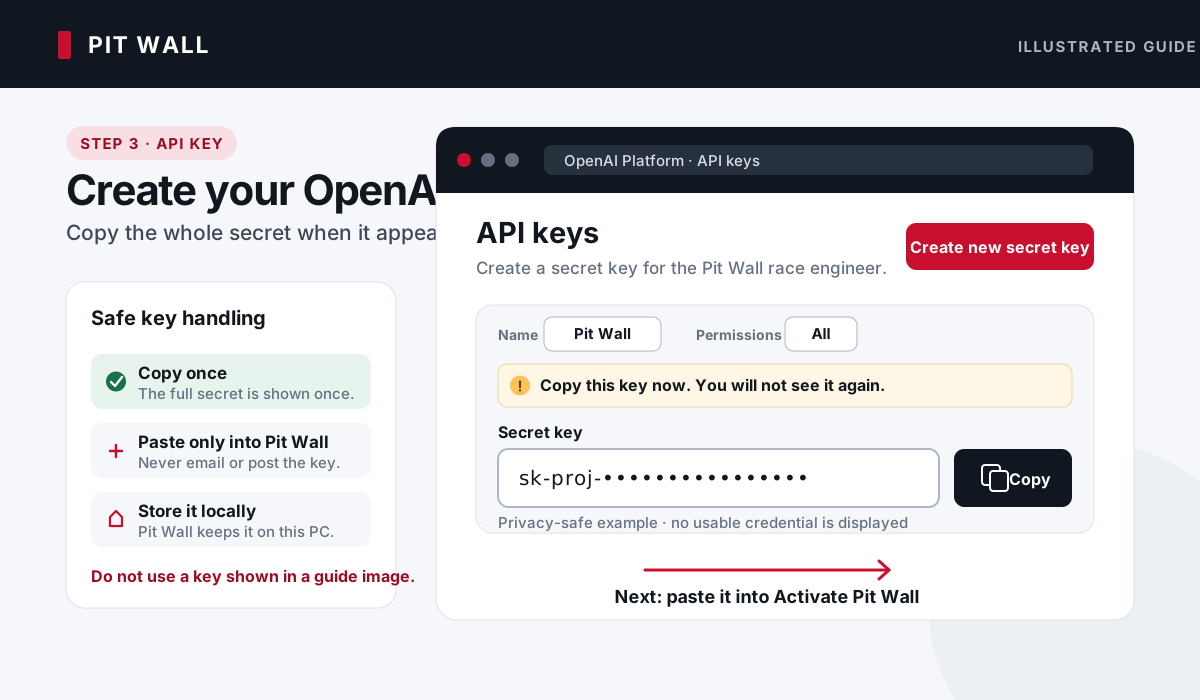
Create and copy your API key
- Open the API keys page.
- Select Create new secret key, name it Your Pit Box, choose All permissions for the simplest compatible setup, and create it.
- Copy the complete secret immediately and keep it private. OpenAI only shows the full value when it is created.
Install Your Pit Box
- Run
PitWall-Setup.exeand follow the installer. It installs for your Windows account, so it does not need an administrator password. - Leave Launch Your Pit Box selected at the end. The Welcome to Your Pit Box window opens.
- Paste your OpenAI API key and select Continue — or select Skip for now and add it later.
PitWall-Setup.exe from the Download section. Run it over the existing installation using the same Windows account; do not uninstall or delete your data folder. Your sessions and settings are kept, and the current version needs no activation code. Start Your Pit Box from the Start Menu after setup finishes.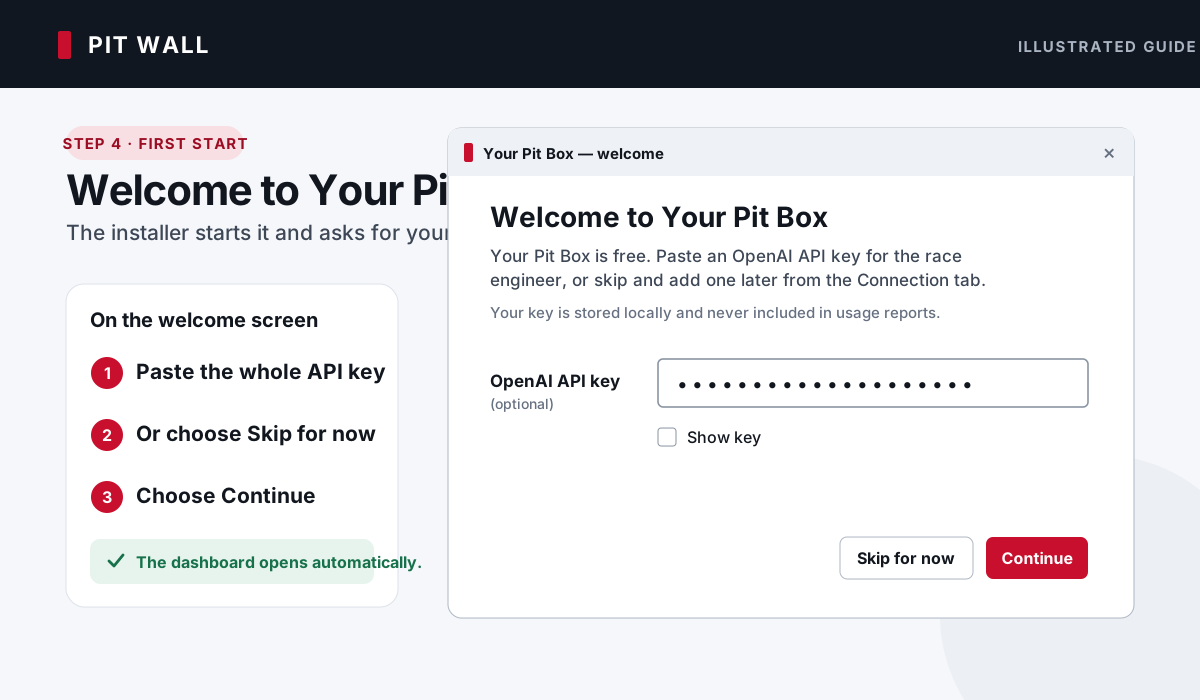
Copy the PC address and check any saved key
If you have not configured AI or voice, skip the key test and copy the telemetry address. You can add a key later without reinstalling.
- Your Pit Box starts its local server and opens the dashboard in your browser by itself. Give it 20–30 seconds — it loads the strategy engine, opens the telemetry socket and starts the audio device before the dashboard appears. Nothing is wrong during that wait. Then select the Connection tab.
- Under AI provider & API keys, keep OpenAI selected as the key being managed and select Test saved key. A successful test confirms that the saved OpenAI API key can authenticate with OpenAI.
- Copy the large address under Enter this UDP IP on PS5 and note port
20777. The screen is labelled for PS5, but the same address also works for a second PC running the game.
192.168. or 10., when the game runs on a PS5 or a second PC. Never enter 127.0.0.1 or 0.0.0.0 there. The one exception: if F1 25 runs on this same PC as Your Pit Box, use 127.0.0.1 in the game instead of the address shown here.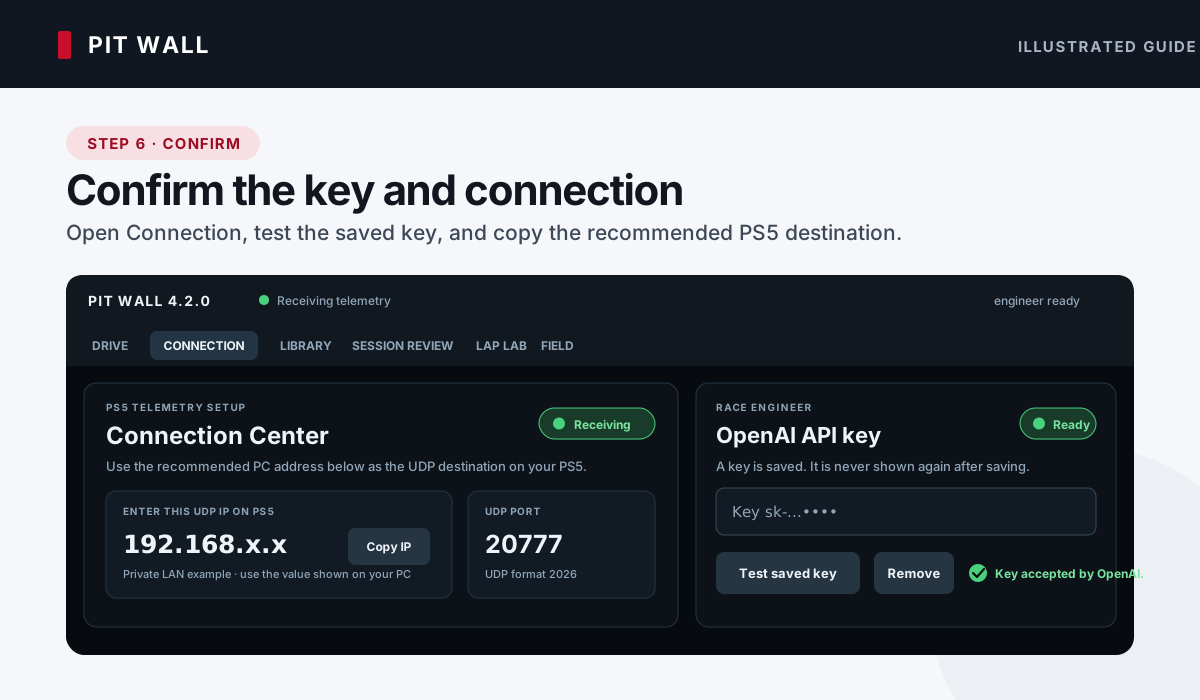
Send 2026 telemetry to Your Pit Box
- In F1 25: 2026 Season Pack, open Settings → Telemetry Settings. The menu is the same on PS5 and PC.
- Set UDP Telemetry to On.
- Set the UDP IP Address: on a PS5 or a second PC, enter the address Your Pit Box recommended in the previous step; if the game runs on this same PC as Your Pit Box, enter
127.0.0.1instead. Set UDP Port to20777, and select UDP format 2026. - Start or join an on-track session. Return to Your Pit Box and wait for the badge to say Receiving telemetry.
127.0.0.1. An Android receiver uses the tablet's own address, not the laptop's.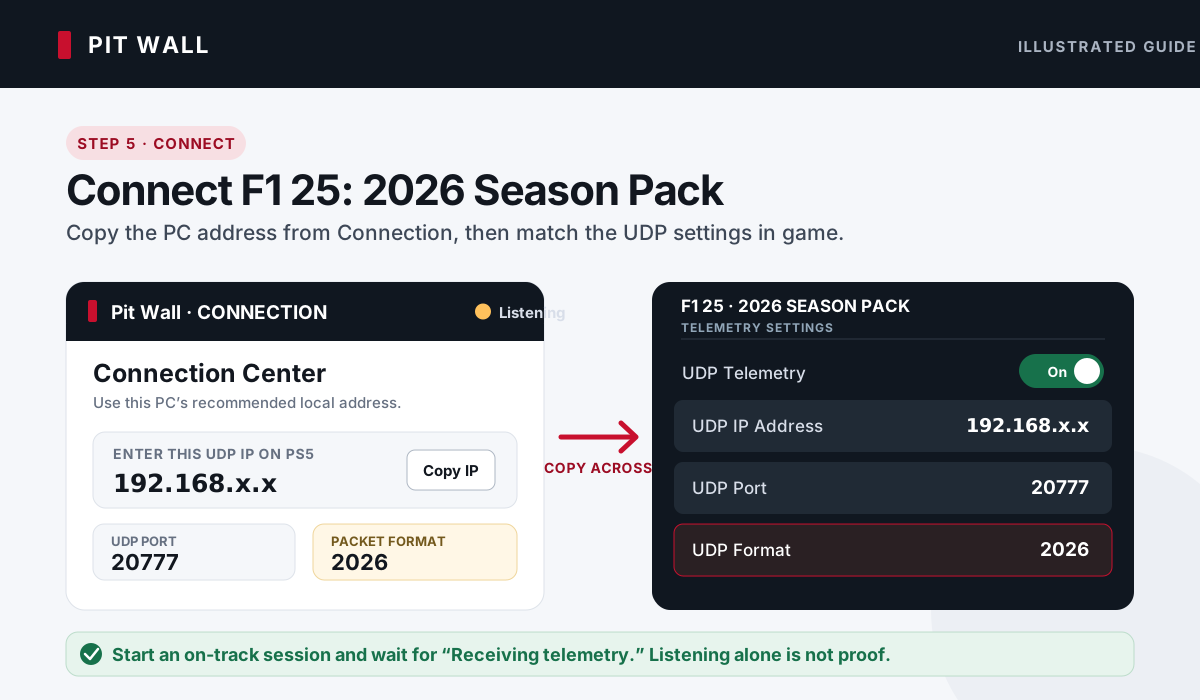
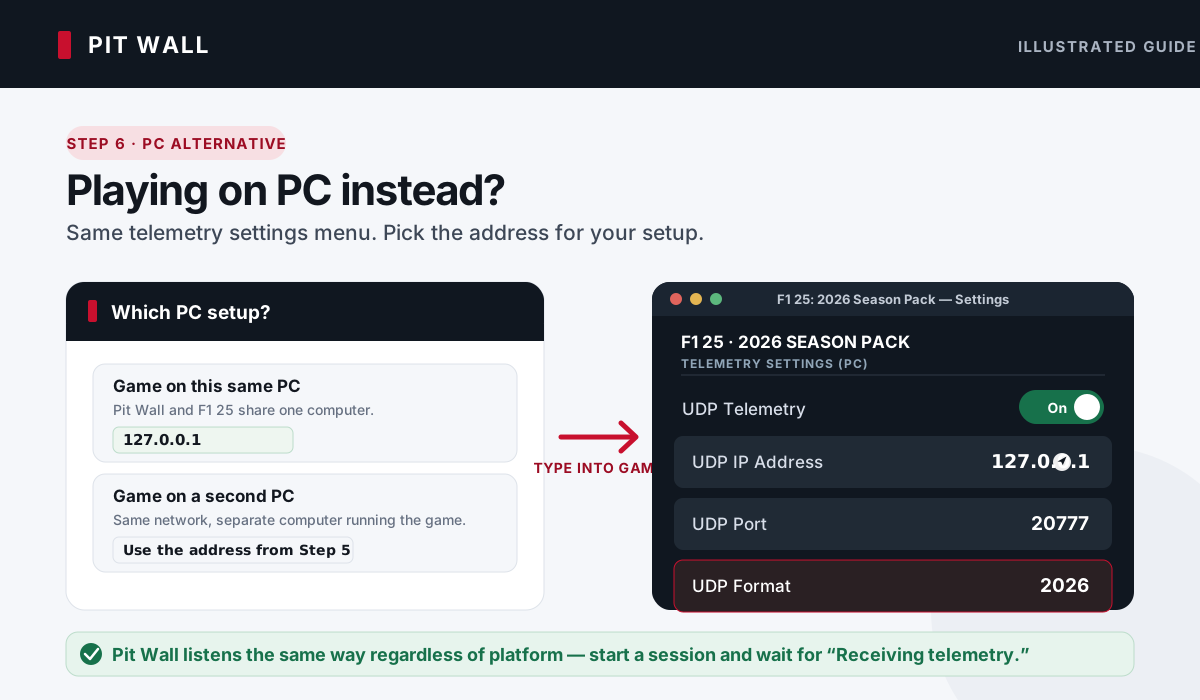
127.0.0.1 instead.Ask the engineer while you drive
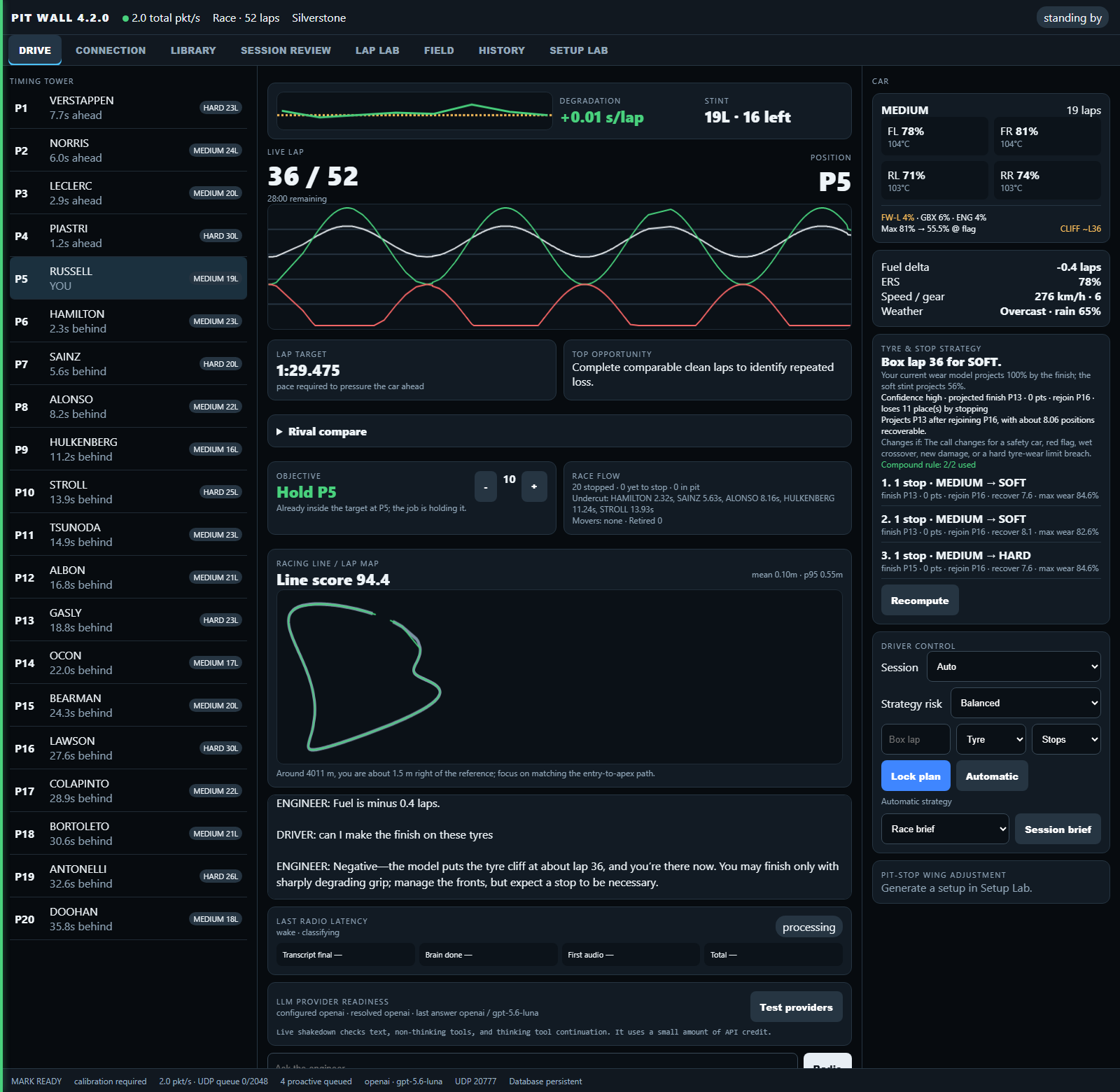
- Open Drive in Your Pit Box and select Test providers. Continue when it reports All configured providers ready; this live check uses a small amount of API credit.
- With the PC microphone and speakers ready, say “Mark, what is the gap ahead?” in one sentence. You can also say “Mark,” wait for the beep, and then ask.
- For push-to-talk on PS5, first map L3 to UDP Action 1 in the game's control settings, then use the L3 → UDP Action 1 radio card in Your Pit Box and select Calibrate. On PC, bind the equivalent action in the game's own control-bindings screen, then calibrate that same input in Your Pit Box.
Copy completed sessions between devices
History transfer is manual, not automatic cloud sync. Each device keeps its own library. Pairing does not sync keys, microphone permissions or a live race. This feature is beta: keep the originals until you have checked the receiving library.
- Finish the receiving device's recording and stop its telemetry listener. Keep both apps open on the same private network and enable Wi-Fi transfers on both.
- Use the displayed QR code or invitation to pair the devices you trust. Then select completed sessions on the sender from the receiving app.
- Start with a small selection. Very large libraries may exceed archive limits or time out during preparation; a larger timeout alone does not make an oversized archive importable.
- Version 4.10.1 adds transfer stages on both devices; older builds may show less detail. Preparing packages the history; sending moves the file; checking verifies it; importing saves it. A full send bar is not confirmation that the history is imported.
- Wait for completion on the receiving device, then check its Library. Matching sessions already present are skipped. Only available history is copied; previously pruned samples cannot be reconstructed.
- Turn transfers off and restart telemetry on the device you want to use for the next race. Check the game's UDP destination again if switching from laptop to tablet.
It timed out, or I want to play now
Do not delete your library, uninstall the app or repeatedly start new copies. Check both devices first: the sender may still be preparing the same export. Retry the existing failed transfer when appropriate, or choose a smaller batch after it has stopped. To pause transfers, turn Wi-Fi transfers off and wait until no job is preparing, downloading or importing before restarting telemetry. An import already saving history must finish safely; do not force-close the app.
What is actually transferred?
The selected sessions and their available history, traces and linked reference data are copied over the local network. This is not a complete device backup. API keys, private connection settings and microphone permissions stay on their original device. Keep a separate recoverable backup before replacing an app or making a major upgrade.
Forward live telemetry to another app or device
Optional UDP forwarding is separate from saved-session transfers and from receiving game telemetry directly. A forwarded packet is best-effort, not a delivery receipt.
- First confirm that the sending engineer shows Receiving telemetry from the game.
- In Connection → UDP forwarding, add the destination app's address and listening port. Prefer a trusted destination on the same private network.
- Enable that target and check the receiving app for fresh telemetry. The sender's packet count alone does not prove delivery.
- Avoid forwarding loops or sending both a direct and forwarded feed to the same receiver. If reception is unreliable, disable forwarding and point the game directly at the engineer you are using.
Beta forwarding does not copy your saved library, API keys or microphone permissions. Do not forward telemetry to a public address unless you intend to share it with that destination.
Compare the laps you choose
Open Setup Lab → Open Test Engineer, or Analysis → Test Engineer. Choose the current session or a saved session. Automatic runs remain available alongside your own named lap groups.
Define Stint A, B and C
- Open Define my lap groups. Use Add group and give it a name, then choose From lap and Through lap and select Use this range. Check or uncheck individual laps to refine the selection.
- For a starting point, set Number of suggested groups to 2–12 and choose Suggest groups. You need at least one recorded lap per group. Suggestions follow session order and favour recorded tyre, setup and session changes; they do not cluster unrelated fast and slow laps.
- Review every group, then choose Save groups. A lap can belong to one custom group. Laps left unassigned, including newly completed laps, stay in the recording and can be added later. After a rewind, the timeline label distinguishes repeated lap numbers.
- Under Choose from, select My saved lap groups. Choose Baseline A and Test B, then Stint comparison — any compound and Compare stints. Choose Automatic runs to return to event-based runs.
Use stint comparison for medium versus hard tyres or other experiments you want to review. It describes selected clean pace and sectors alongside the conditions; it does not isolate a tyre or setup effect. A group containing different tyre sets, setups or timelines has no single pace-trend estimate. Sector differences use laps with all three sectors recorded, which may be a smaller cohort than the overall pace comparison.
Keep the explanation with the lap
Open Lap context and driver reports, choose the affected lap range and reason, describe what happened, then select Save lap note. Check Exclude these laps from pace comparisons only when that assessment applies to every selected lap. Leave it unchecked for context such as a handling observation. Use Edit note or Remove note if the assessment changes; removing a note also removes any exclusion supplied by that note.
With a reasoning provider configured, you can tell the engineer, “Lap 6 was compromised because I was held up in sector two,” or ask it to note an issue on a named group. Wait for the engineer to confirm that the note was saved. A report about “this lap” stays attached to the lap where the request started, even if you cross the timing line during the reply. An unfinished lap's note remains pending until that attempt is recorded.
Later reviews, comparisons, pit-entry debriefs and exports include the saved context. Driver reports and engineer interpretations are labelled separately from measured air/track temperatures, fuel, tyre age and traffic evidence. A proximity flag shows nearby cars; it does not measure how much time traffic cost. Missing traffic evidence does not establish clear air. Notes never replace the original telemetry.
Understand a slow lap in the middle
A slow lap stays in the same run. With stable measured conditions and consecutive neighbouring laps back at baseline, a slowdown greater than 2.5 seconds or 3% (whichever is larger) is labelled isolated slow lap and excluded from clean pace. The neighbours must agree within one second or 1% (whichever is larger). This identifies a temporary pace change; it does not establish whether you cooled the tyres, made a mistake or met traffic. Missing context and sustained changes do not establish an isolated slow lap. Excluded laps and their reasons remain visible.
Run a matched setup test
A and B can come from one session or separate saved sessions at the same circuit. Choose B’s session, then choose its automatic run or custom lap group. Each session keeps its own notes and exclusions. Groups, notes and session exports below the comparison belong to A; open B’s session to edit its saved notes. Check the comparison limits: matching laps does not verify the same game version, car, formula or car performance.
- Use Test plan and conclusions to record your objective for the whole session, an automatic run or a saved group.
- Complete at least three clean timed laps. Returning to the pits creates a debrief on Drive; it can also be spoken when proactive radio is enabled and the engineer is free. Leaving the pits starts the next run.
- Change one setup setting. Keep compound and starting fuel comparable, then repeat the run in clear air. Runs also split when the recorded setup or tyre set changes.
- Select A and B and choose Matched setup test, then Compare matched laps. Each group must contain one recorded setup. Matching requires the same compound and weather, tyre age within one lap, fuel within 3 kg and track/air temperatures within 3°C. Invalid, pit, flagged, traffic, reported exclusions, outlier and incomplete laps are excluded. At least three matched pairs are needed for a verdict.
- Read the B-minus-A lap and sector differences: negative means B was quicker. Save your conclusion, then choose Export session report for text or Export JSON. On Android, choose a destination in the file picker.
Session Review → Review runs / export report opens a saved session's Test Engineer report. Cross-session setup tests also require the same recorded session mode; known differences in circuit length prevent comparison. Older sessions remain available, but missing setup or condition evidence cannot be reconstructed. Observed pace trend includes fuel and driving effects; a matched comparison does not prove the setup caused the difference.
For a race, Strategy → Who am I racing? ranks the closest projected finish gaps after estimated remaining stops. Tyre age, current position and confidence are shown. Unknown gaps and predicted stops remain estimates.
Choose a baseline, then test it
Open Setup Lab, choose your circuit and conditions, then select Stable or More rotation. Both references cover all 24 calendar circuits for F1 25: 2026 Season Pack. Choose Race, Quali or Mixed; qualifying uses separate published values where supplied, while Mixed uses race values. Settings are grouped like the game garage. Open Sources & setup details for the original references, review date and adaptations.
Circuit baseline preserves the selected source values. Choose Personalise for me to apply your preferences and applicable live feedback: Small adjustments makes small changes to your current car, Moderate changes blends toward the reference, and Start fresh starts from it. Personal changes are suggestions to test, not proof of a pace gain. Old aggregate setup scores and universal tyre-temperature rules no longer alter the reference.
References target dry conditions. Wet or unsupported circuit/style selections report when no applicable reference is available. For qualifying under parc ferme, check the source's race-wing and brake-pressure guidance before committing. Published setups still need testing with your car, assists and driving style; use Test this setup to open Test Engineer and compare matched runs.
Enter the settings in the game garage; YPB does not apply them to the game. During a race, only a separately identified permitted front-wing adjustment is offered for a pit stop. Unsupported numerical lap-time gains and tyre-life multipliers are no longer presented as setup predictions.
For Android connection interruptions, the Connection page now reports OS-observed network losses and severe thermal status. Those readings help distinguish a device/network interruption from missing game telemetry.
If a check does not pass
The key test fails
Confirm that API billing is active, wait a few minutes after buying credits, and paste a newly created secret under Connection → OpenAI API key. Select Save key, then Test saved key. A ChatGPT subscription by itself is not API billing.
Your Pit Box says Listening
Start an on-track session. Recheck the receiving device's address in Connection, port 20777 and format 2026, then select Run diagnostics. Use the Android address for Android, the PC address for Windows, or 127.0.0.1 only when the game and engineer run on the same PC. Make sure both devices share the private network; for Windows reception, allow the app through the firewall on private networks without disabling protection.
Windows: the dashboard did not open
First, give it 20–30 seconds. Your Pit Box opens the browser itself, but only once the strategy engine, telemetry socket and audio device are up, so a launch that looks like nothing is happening is usually just a launch still in progress.
If it has been longer than that, leave Your Pit Box running and open http://127.0.0.1:8000 on that same PC. The address is local to the computer and is not a public website.
Windows: closing the browser did not stop Your Pit Box
That is deliberate. The dashboard is only a window onto Your Pit Box; the app itself keeps running so it can carry on recording telemetry and answering on the radio while the browser is closed. There is no console window and no tray icon, so nothing visible tells you it is still there.
To stop it, open the dashboard and use Quit Your Pit Box in the top-right corner. It finishes and saves any session being recorded first, then closes. Allow about 20 seconds for it to shut down fully before starting it again.
It asks for an activation code
That is an older version; the current download needs no code. Close its activation window, download a fresh PitWall-Setup.exe from the Download section, and install it over the existing version using the same Windows account. You do not need to uninstall first. Your sessions and settings are kept; do not delete the PitWallData folder.
After setup, launch Your Pit Box from the Start Menu rather than reopening an older downloaded copy. If an activation window still appears, contact support with the exact window title and installer filename. Do not include your API key.
For historical installs only: if you deliberately keep an earlier version and already have a code, the activation diagnostics check server reachability and whether that existing code is recognised, without using it up. They do not issue a new code and are not needed for the current download.